Checklist for AI Product Recommendation Setup
Checklist for AI Product Recommendation Setup
AI-powered visual product recommendations can transform your Shopify store by analyzing product images to suggest visually similar items. This guide explains how to set up tools like sImage to boost sales and improve customer experience. Key steps include preparing your catalog, installing the app, and optimizing recommendation widgets. Here's what you need to know:
- Why It Matters: Personalized recommendations can increase average order value (AOV) by 10–30% and improve conversion rates by up to 20%.
- Pre-Setup Essentials: Ensure your store uses a Shopify Online Store 2.0 theme, has at least 20–30 high-quality product images, and is organized with consistent tags, collections, and metadata.
- Installation: Add sImage from the Shopify App Store, sync your product catalog, and integrate widgets into your store using the theme editor - no coding required.
- Optimization: Customize widget design, track metrics like click-through rates, and test placements to refine performance.
- Maintenance: Regularly update product images, metadata, and catalog settings to keep recommendations accurate and relevant.
AI Product Recommendations on Shopify: Setup, Tools & Results
Pre-Setup Requirements
Preparing your Shopify store for sImage installation is a crucial step. Laying the groundwork now ensures the AI performs effectively from the start. Here’s what you need to check and organize before moving forward.
Check Your Shopify Store Status
Your Shopify store should be fully set up and live or at least ready to launch. This means products, collections, and basic navigation should already be in place. If your store is still password-protected or under construction, hold off on installation until it’s closer to being launch-ready.
Make sure your store uses a supported Shopify plan and a published Online Store 2.0 theme. These themes, like Dawn, allow for app blocks and dynamic sections, making it easier to add widgets. If you’re using an older theme, confirm whether it supports custom app blocks or sections to avoid installation issues.
Take a close look at your product catalog. Products should be grouped into clear, logical collections (e.g., "Women's Dresses", "Summer Collection", or "Best Sellers") and assigned specific product types like "T-Shirt" or "Sneakers." Use consistent tags to describe attributes such as color, size, material, and style. For instance, tags like "red", "cotton", or "casual" help the AI identify relationships between products. Avoid overly broad categories like "Miscellaneous" and steer clear of over-tagging with irrelevant keywords.
Your store should feature at least 20–30 products with images to enable the AI to deliver meaningful recommendations. If your inventory is smaller, consider waiting until you’ve added more items. Additionally, ensure your store’s currency is set to USD and that you’re using U.S. English conventions (e.g., "color" instead of "colour"), as the recommendation widgets will inherit these settings.
Since a significant portion of Shopify traffic comes from mobile devices, test your recommendation widgets on smaller screens. Design them to be compact and easy to navigate, showing no more than three to five items at a time on mobile.
Prepare Product Images and Data
Good visuals are the backbone of accurate AI recommendations. High-quality, consistent product images are essential for the AI to effectively analyze similarities in color, shape, pattern, and style.
Use high-resolution images (minimum 1,024 × 1,024 pixels, preferably 2,048 × 2,048) in JPG or PNG format. Stick to a consistent aspect ratio across your catalog, such as 1:1 or 4:5, for a uniform display in recommendation grids. Each product image should have a clean, neutral background - white or light gray works best - free from distracting props, watermarks, or text overlays. Avoid heavy shadows, extreme angles, or lifestyle-only shots as the main image. Instead, opt for clear, front-facing photos that showcase the product in full detail.
Consistency in lighting and color representation across your images enhances the AI’s ability to match similar products. If your products have multiple images (e.g., front, back, detail shots), ensure they’re captured in a similar style and at consistent angles. This uniformity helps the AI better understand each item’s features.
Beyond visuals, your product data and metadata should be complete and accurate. Each product needs a clear, descriptive title, a detailed product description, and a properly filled "Vendor" field. Tags should be applied consistently (e.g., red, cotton, summer, casual) to support both visual and rule-based recommendations.
Ensure every product has at least one main image and, if possible, additional views or lifestyle shots. Double-check that pricing, inventory, and variant details are up to date. Missing or outdated data can weaken the relevance of recommendations and negatively impact conversion rates. Shopify’s default AI recommendations prioritize items based on purchase history, followed by product descriptions and related collections, so better descriptions and well-organized collections will directly improve results.
Stick to consistent naming conventions across your catalog. For example, decide whether to label an item as "T-Shirt" or "Tee" and use that term consistently. Inconsistent naming can confuse the AI and reduce the quality of its recommendations.
| Pre-Setup Element | Why It Matters for AI Recommendations | Key Checks Before Install |
|---|---|---|
| Store & Theme Status | Apps rely on theme app blocks/sections and live catalog | Published Online Store 2.0 theme; store currency USD; navigation set up |
| Catalog Structure | Drives logic for "related" and "similar" products | Collections, product types, and tags consistently applied; no orphan products |
| Product Images | Critical for visual similarity and user trust | High-resolution, consistent angles/backgrounds, multiple views per product |
| Product Data | Fuels text- and behavior-based recommendations | Complete titles, descriptions, variants, tags, and collections; standardized naming |
| Business Goals & Placement | Guides configuration and measurement | Defined goals (AOV, cross-sell), target pages for widgets, initial KPIs |
Set Your Business Goals
Before diving into installation, it’s crucial to define what you want to achieve with sImage. Clear goals will guide widget placement and help you measure success.
Consider your priorities: Are you aiming to increase cross-sells by highlighting complementary items? Do you want to boost average order value (AOV) by suggesting higher-priced alternatives? Or is your focus on reducing bounce rates by encouraging customers to explore more products? Your objectives will shape how and where you use recommendation widgets.
Set measurable targets, like increasing AOV by 10–15% or improving click-through rates by 20%. For instance, a fashion store might aim to grow accessory sales by 25% with "You may also like" sections on product pages.
"Since implementing this app, I've noticed a reduction in bounce rates and an increase in sales from upselling and cross-selling." - The Dutch Tile Project
Decide where recommendation widgets will appear. High-impact locations include product pages ("You may also like"), the cart page ("Frequently bought together"), the homepage ("Trending now"), and collection pages ("More like this"). For cross-selling, product and cart pages work best. For discovery and engagement, homepage and collection placements are ideal. Each placement should align with a specific goal - for example, cart page widgets can increase AOV, while product page widgets help reduce bounce rates and extend session durations.
Plan to monitor your progress using Shopify Analytics or Google Analytics. Key metrics to track include AOV, conversion rates, add-to-cart rates, click-through rates on widgets, and revenue from recommended products. Setting benchmarks before installation will make it easier to assess the impact of your recommendations.
Finally, decide which page layouts and configurations you want to test. For example, you might A/B test the number of recommended products shown (three versus five) or compare a carousel layout to a grid. Planning these tests in advance will save time and help you focus on strategies that drive results.
Once your store and goals are ready, you can move on to the installation and configuration phase.
Installation and Configuration Steps
With your store prepared and your goals set, it's time to install and configure sImage for visual recommendations. The process is simple and requires no technical expertise. Here's how to get started with sImage on your Shopify store.
Install sImage from the Shopify App Store
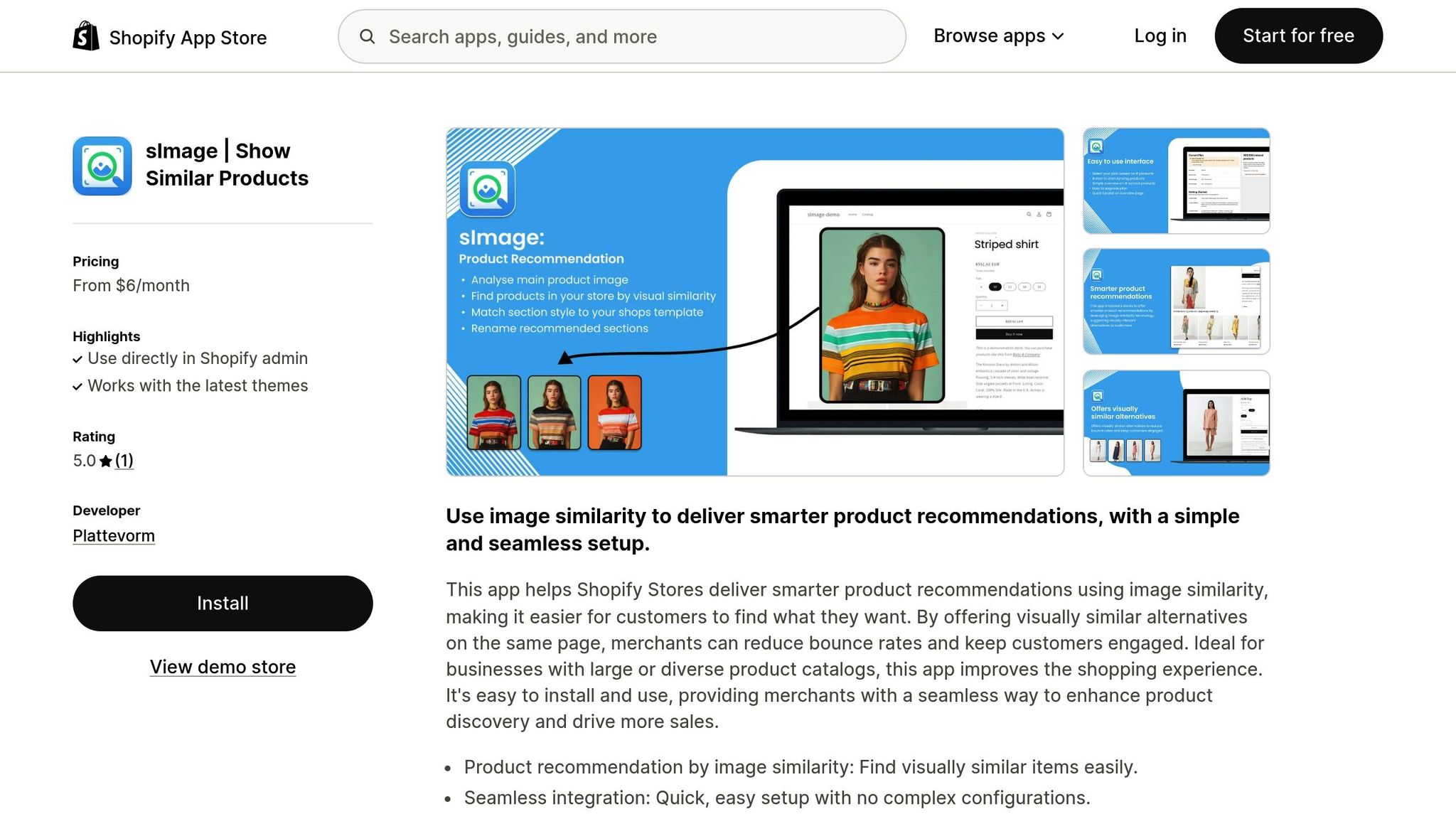
- Log in to your Shopify admin panel.
- Head to the Apps section on the left sidebar and click Shopify App Store at the top.
- Use the search bar to find "sImage" and select the app to review its pricing, features, and user reviews.
- Check the pricing options:
- Free for up to 100 products.
- Paid plans starting at $6.00/month for up to 500 products.
- Higher-tier plans scaling up to $60.00/month for larger catalogs.
- An Enterprise plan available for stores with over 8,000 products.
- Once you've reviewed the details, click Add app. You'll be redirected to a permissions screen where sImage requests access to your store's data, including your product catalog, images, themes, and store settings. These permissions allow sImage to analyze your product images and integrate recommendation widgets into your store.
- Click Install app to authorize sImage. You’ll then be redirected to the sImage dashboard.
- sImage will begin an initial product catalog sync, scanning all active products, including their images, titles, tags, collections, and variants. Sync time varies - smaller catalogs take a few minutes, while larger ones may require 15–30 minutes.
- During the sync, sImage's AI analyzes product images for visual characteristics. High-quality images with neutral backgrounds and consistent lighting deliver the best results. If some products lack strong recommendations, consider updating their images based on the quality standards outlined in your setup checklist.
You can track the sync's progress in the sImage dashboard, where a progress bar shows the number of processed products. Once the sync is complete, your visual recommendations will be ready for use on your store pages.
Add Recommendations to Your Store Pages
After the catalog sync, it's time to integrate recommendation blocks into your store layout. sImage works seamlessly with Shopify's Online Store 2.0 themes, allowing you to add these blocks through the theme editor without needing to code.
- From your Shopify admin, go to Online Store → Themes. Locate your active theme and click Customize to open the theme editor.
- For product pages:
- Select the product page template (commonly labeled Products → Default product) in the theme editor.
- Choose a placement for the recommendation block - usually below the product details (title, price, description, and "Add to cart" button) but above sections like customer reviews.
- Add a new section or block, then select the sImage option from the Apps list. Drag and drop it into position. The widget will automatically display visually similar products.
- For collection pages:
- Switch to a collection template (e.g., Collections → Default collection) in the theme editor.
- Add the sImage block where it complements the product grid - typically mid-page or near the bottom, with a heading like "Trending Now" or "Similar Styles."
- For modals or popups (such as after adding an item to the cart), check if sImage supports integration with cart pages or modal layouts. These placements are great for showcasing complementary items.
- On desktop, horizontal carousels showing 3–5 items work well. On mobile, where space is limited, configure the widget to show 1–2 items per row in a swipeable carousel. This is especially important since over 70% of Shopify traffic comes from mobile devices.
- Once you've added the sImage blocks, click Save in the theme editor. Preview your store on both desktop and mobile to ensure the recommendations display correctly.
Customize Display Settings and Branding
Now that the widgets are in place, fine-tune their appearance to match your store's branding. Open the sImage app in your Shopify admin to make adjustments.
- Set the number of recommendations per widget for desktop and mobile. A common setup is:
- Desktop: 4–8 total items, displayed in rows of 4.
- Mobile: 4–6 items, shown in rows of 1–2 or as a single-row carousel. For smaller catalogs, reduce the number of recommendations to avoid repetition.
- Configure exclusion rules to filter out certain products. For example:
- Exclude out-of-stock items.
- Exclude products from specific collections like "Gift Cards" or "Final Sale."
- Use tags (e.g., "no-recs") to exclude specific products. This ensures your recommendations remain relevant and aligned with your store's strategy.
- Adjust the widget's fonts, colors, button styles, and spacing through the sImage settings or theme editor. Use clear headings like "You May Also Like", "Similar Styles," or "Complete the Look" to make the purpose of the recommendations obvious and enhance the shopping experience.
- Ensure that the widget's design matches your store's theme. For example:
- Fonts, colors, and button styles should blend seamlessly.
- Prices should follow standard US formatting (e.g., $49.00 instead of "49.00 USD" or "$49"). Consistent styling makes the widgets feel like a natural part of your store.
sbb-itb-521eef9
Testing and Performance Optimization
After launching your sImage widgets, the next step is to ensure they’re performing as intended. This means testing and fine-tuning your AI recommendations to drive better engagement, boost cross-sells, and increase revenue. This phase builds on your initial setup by verifying how well recommendations align with shopper expectations, improving product data, and analyzing key metrics.
Review Recommendation Accuracy
Start by manually reviewing recommendations for your top 20–50 revenue-generating and high-traffic products. These pages have the greatest potential to influence sales. Conduct these checks monthly, and increase the frequency to weekly during peak U.S. shopping periods like Black Friday–Cyber Monday or major holidays.
For each product, ask yourself: Do the recommended items make sense from a shopper’s perspective? Good recommendations share clear visual similarities - a navy floral dress should suggest other floral dresses or matching cardigans, not neon gym shorts. They should also align with the same shopping intent and fall within a reasonable price range - typically within ±20–30% of the main item’s price. For example, a $40 T-shirt shouldn’t suggest a $400 coat unless there’s a logical reason.
Ensure that sizing, gender, and category match customer expectations. Women’s running shoes, for instance, shouldn’t recommend men’s dress shoes. Also, verify that the recommended items are in stock and seasonally appropriate - pushing heavy winter coats in July might confuse shoppers unless you’re highlighting off-season deals. If you spot mismatches, document them in a shared spreadsheet. Include the product URL, recommended SKUs, and a brief description of the issue. This feedback can help refine sImage’s filters and exclusion rules. Once you’ve completed this review, focus on improving your product data to enhance recommendation accuracy further.
Improve Product Data Quality
AI visual recommendation tools like sImage rely heavily on the quality of product images and metadata. Ensuring your data is precise and consistent can significantly improve the system’s performance.
- Use high-resolution images (at least 1,200×1,200 pixels) with clean, neutral backgrounds to reduce visual distractions.
- Standardize angles, distances, and lighting across your catalog to make comparisons easier for the AI.
- Ensure accurate color representation - U.S. shoppers expect shades like “navy” and “black” to appear true to life.
Metadata is equally important. Use consistent naming conventions for titles, tags, options, and collections. Standardize color names (e.g., “Navy,” “Light Blue,” “Charcoal Gray”) and include tags for style attributes like “striped,” “floral,” or “slim-fit.” Add material and pattern details in titles or metafields, such as “Men’s Slim-Fit Cotton Oxford Shirt – White.” Use U.S.-specific units like inches for dimensions and pounds for weight, and include fit notes when relevant. Once your data is optimized, you’ll be in a better position to analyze performance and make adjustments.
Track Metrics and Run A/B Tests
To optimize your recommendations, you need to measure their performance. Focus on these key metrics:
- Click-through rate (CTR): Calculate by dividing clicks by impressions. A low CTR may indicate irrelevant visuals, poor placement, or weak messaging.
- Conversion rate: Compare sessions where users interacted with recommendations to those that didn’t. This shows whether recommendations help close sales.
- Average order value (AOV): Measure the difference in order value for purchases that included recommended items versus those that didn’t.
- Revenue from recommendations: Track the percentage of total revenue generated from items in recommendation blocks.
- Engagement metrics: Look at time on site and pages per session for users who interact with recommendations.
Use Shopify analytics and sImage’s reporting tools to track these metrics. If detailed analytics aren’t available, monitor changes in AOV and conversion rate manually after implementing recommendations on specific pages.
Once you’ve established baseline metrics, run A/B tests to find the most effective configurations. Test one variable at a time - such as placement, heading copy, or the number of products displayed - to isolate its impact. For example:
- Placement: Compare locations like below the “Add to cart” button, under the product description, or in the cart drawer.
- Headings: Try different phrases like “You may also like,” “Complete the look,” or “Similar styles you might love.”
- Layout: Test carousels versus grids, or display 4 versus 8 recommendations to balance variety without overwhelming shoppers.
Run tests for at least one to two full purchase cycles or over a representative period, such as two weeks including weekdays and weekends. Once you identify the best-performing variant, roll it out across your store. Keep in mind that over 70% of Shopify traffic comes from mobile users, so prioritize mobile-friendly layouts and fast load times when evaluating widgets.
Keep an eye out for signs of trouble. A sudden drop in recommendation CTR or conversion rate without obvious changes in traffic or pricing, increased returns, or customer complaints about items not meeting expectations may signal an issue. If this happens, re-audit your product images and metadata, adjust filters and exclusion rules in sImage, and refresh your catalog sync if needed. Regular monthly reviews can help you catch and address these problems early, ensuring your recommendations continue to perform well.
Ongoing Maintenance and Scaling
To keep your AI-powered visual recommendations effective, regular updates and maintenance are essential. Without this upkeep, recommendations can become outdated, irrelevant, or even dysfunctional, which can erode customer trust and engagement.
Update Your Product Catalog Regularly
Your product catalog is the backbone of your recommendation system. Any changes - like adding new products, discontinuing old ones, or updating existing items - need to be reflected in your recommendation engine to keep it accurate.
Weekly catalog checks should cover the essentials. After adding new products, confirm they appear in recommendation widgets promptly. If items are marked as out of stock or discontinued, make sure they no longer show up in sections like "You may also like" or "Similar styles." It's also a good idea to spot-check a few high-traffic product pages to ensure recommendations align with the displayed items, especially after bulk updates or significant catalog changes.
Monthly catalog reviews can go deeper. Focus on your top-selling products to ensure their recommendations are relevant to current inventory, pricing, and seasonal trends. For instance, if you're a U.S.-based clothing store entering fall, it's probably not ideal to suggest summer dresses alongside heavy knit sweaters unless there's a clear styling connection. Also, ensure product images are consistent in quality, lighting, and background.
When introducing new products, make sure they meet your store's quality standards. For major updates, upload fresh images and adjust recommendation blocks accordingly. If your system allows for manual syncing or re-indexing, trigger it after significant catalog changes to keep everything up to date.
These catalog updates lay the groundwork for effective performance reviews.
Review Performance and Fix Issues
Beyond initial testing, ongoing performance monitoring is crucial to address mismatches and fine-tune your recommendations. Customer preferences, seasonal trends, and market dynamics are always changing, so regular reviews can help you stay ahead.
Monthly performance checks should focus on key metrics like:
- Click-through rates (CTR) on recommendation widgets
- Add-to-cart rates for recommended products
- Conversion rates from recommendation interactions
- Revenue or average order value (AOV) tied to recommendations
Most Shopify analytics tools and the sImage dashboard can break these metrics down by page type - product pages, the cart, or the homepage - so you can pinpoint where recommendations perform well and where improvements are needed.
If metrics fall below expectations, dig deeper. Check if certain product categories are underperforming, if mobile recommendations load poorly, or if mismatched pricing (like high-priced items paired with low-cost ones) is causing issues. Customer feedback is also invaluable - review product reviews, support tickets, and live chat logs for complaints about irrelevant suggestions, repeated appearances of sold-out items, or mismatched recommendations. Use behavior analytics tools like heatmaps or session recordings to see how customers interact with recommendation sections and whether clicks lead to purchases or bounces.
Once problems are identified, take action. Adjust product tags, update low-quality images, refine exclusion rules (like hiding clearance items from premium product pages), or tweak settings to avoid mismatched recommendations. Document your changes and monitor their impact over the following weeks. If issues persist, reach out to sImage support with detailed examples and screenshots for further assistance.
Keep experimenting with A/B testing. Test one variable at a time - such as widget placement, design (carousel vs. grid), or headings like "You may also like" vs. "Complete the look" - to see what resonates most with your audience. Run tests for at least two weeks to capture both weekday and weekend traffic patterns. Once you find a winning setup, apply it to other high-traffic pages.
Maintain Technical Stability
Your AI recommendation widgets depend on a seamless integration with your Shopify theme, app permissions, and data connections. Any technical changes - like theme updates, new app installations, or design overhauls - can disrupt these integrations. Proactive technical maintenance ensures everything continues to run smoothly.
After any theme update or design change, test all pages where recommendations appear. Check product pages, collection pages, the cart, and the homepage on both desktop and mobile. Confirm that widgets load properly, images display correctly, and load times remain acceptable. With most Shopify traffic coming from mobile users, prioritize mobile layouts to ensure carousels scroll smoothly without cutting off images or text.
Verify that sImage's theme blocks or snippets are still active in the right templates, and watch for JavaScript conflicts or CSS overrides that could disrupt functionality. If problems arise, consider rolling back recent changes, consulting theme documentation, or contacting sImage support. Reapply updates incrementally, testing at each step to ensure stability.
Review app permissions and staff access every quarter. Ensure sImage and other recommendation apps have the necessary permissions to access product, order, and storefront data. Limit staff access to only those who need it to adjust recommendation settings or view customer data. Maintain a guide that documents which apps power your recommendations, where widgets are placed, and key configuration settings. This can simplify troubleshooting during updates or promotions.
Prepare for peak shopping periods like Black Friday–Cyber Monday, back-to-school season, or the holidays. Before these events, sync your latest catalog - including seasonal items, bundles, and promotional pricing - and verify that discounts display correctly in recommendation widgets. Stress-test high-traffic pages to ensure they perform well under increased demand. During these times, consider excluding low-stock items from recommendations to avoid customer disappointment, and keep a close eye on performance metrics to address any issues quickly.
Set up a simple maintenance schedule to keep things organized. Weekly tasks might include quick visual checks of key pages and products, while monthly tasks could involve performance reviews and minor adjustments. Quarterly tasks might include deeper A/B testing, catalog clean-up, and app and permission reviews. These practices will help you keep your recommendations optimized as your store grows and evolves.
Conclusion
Setting up AI-driven visual product recommendations on your Shopify store doesn’t have to be complicated. By following a clear checklist - preparing your product catalog, installing the right tools, and regularly testing and refining your widgets - you can create a shopping experience that not only helps customers discover items they’ll love but also boosts order value and conversion rates. This process sets the stage for smarter, data-informed recommendations.
The success of visual recommendations depends heavily on having high-quality product images and well-organized metadata, such as accurate titles, tags, collections, and variant details. When your data is structured and your visuals are clear, AI tools can effectively identify visual similarities and suggest relevant products. To start, focus on one or two key recommendation placements, like a "Similar items" section on product pages or a "Complete the look" widget in the cart. Keeping these recommendations simple ensures shoppers aren’t overwhelmed, making it easier for them to engage and increasing click-through rates. This approach aligns seamlessly with the needs of U.S.-based Shopify merchants.
For Shopify merchants in the U.S., tools like sImage offer an easy, no-code solution tailored to growing product catalogs. sImage scans your product images to suggest visually similar items, making it especially useful for categories like fashion, accessories, and home décor. After installing it from the Shopify App Store, you can quickly add recommendation widgets to your product pages. These widgets allow customers to explore alternatives in similar styles, colors, or aesthetics without navigating away from the page. With pricing that adjusts as your store grows, sImage ensures your recommendation system scales alongside your business.
However, success doesn’t end with installation - it’s all about ongoing measurement and fine-tuning. To optimize performance, track metrics like click-through rates on recommendation widgets, the percentage of orders including suggested products, and the increase in average order value (AOV) driven by recommendations. Analyze these numbers over weekly or monthly periods to avoid reacting to short-term changes. Even small improvements in AOV or conversion rates can translate into meaningful revenue. Consider A/B testing widget placements, designs, and headings to identify what resonates most with your audience.
AI recommendations aren’t a “set it and forget it” feature. As your store evolves - adding new products, retiring old ones, or running seasonal promotions - keep your product images, tags, and collections updated to ensure the AI continues delivering relevant suggestions. Schedule regular reviews, whether monthly or quarterly, to check for issues like broken layouts, slow-loading widgets, or conflicts caused by theme updates or new app installations. Consistent monitoring is key to maintaining performance. Over time, you can expand widget placements to areas like the home, collection, and cart pages, or even test personalized blocks for repeat customers versus first-time visitors.
Well-executed visual recommendations don’t just drive sales - they make shopping easier and more enjoyable for your customers. They help shoppers discover products they might have missed and create a sense that your store truly understands their preferences. For U.S. shoppers, who often expect polished, personalized experiences, this can lead to stronger satisfaction and loyalty. By ensuring your widgets align with your brand’s colors, typography, and tone, you reinforce trust and professionalism.
Think of this as an ongoing, data-driven process rather than a one-off project. When done right, your recommendation system can deliver lasting value for both your customers and your bottom line.
FAQs
What steps should I take to prepare my Shopify store for installing AI-powered product recommendation tools like sImage?
Getting your Shopify store ready to use AI-powered tools like sImage is straightforward and doesn’t require any technical know-how. The first step is to make sure your store is running on a modern Shopify theme, as sImage works effortlessly with all supported themes.
Once your store is ready, simply head to the Shopify App Store to install the app. The best part? It sets itself up automatically - no coding needed.
After installation, you can adjust the settings to match your store’s branding and objectives. This way, the app can display visually relevant product recommendations that enhance your customers' shopping experience and help drive sales.
How can I optimize AI-powered visual product recommendations on my Shopify store?
To make the most of AI-powered visual recommendations, start with high-quality product images. Use clear, well-lit photos on consistent backgrounds to help the AI accurately identify and suggest visually similar items. The better your images, the more effective the recommendations.
Keep your product catalog up-to-date to reflect what’s actually available. This ensures the AI offers relevant suggestions that match your inventory. It’s also a good idea to track metrics like click-through rates and conversions. These insights can help you refine your settings and boost cross-selling opportunities.
Lastly, ensure the recommendations fit naturally into your store’s design. A seamless integration creates a smoother shopping experience and keeps customers engaged.
What’s the best way to keep my AI product recommendations up-to-date and effective?
Keeping your AI-powered product recommendations relevant and useful requires consistent updates to your store's product catalog. Make it a habit to refresh product details like images, descriptions, and inventory levels. This ensures the AI has the most up-to-date information to generate accurate and appealing suggestions for your customers.
It's also crucial to track performance metrics like click-through rates and conversion rates. These numbers reveal how well your recommendations are working and highlight areas that might need tweaking. By fine-tuning your AI tool's settings or adjusting its parameters, you can better match customer preferences and stay in step with market trends. Regular updates and monitoring help maintain strong engagement and boost sales.